
LTI Integration
LTI (Learning Tools Interoperability) is the industry standard that allows different educational platforms to communicate securely. For an RTO using Nimbu, LTI is the key to expanding your curriculum beyond static files.
It allows you to connect external learning tools, such as interactive Evokio activities or specialised simulation software, directly into the Nimbu student portal. The student never has to leave Nimbu or manage multiple logins; the external content is embedded seamlessly as part of your course.
What's Covered in This Article
This article explains how to establish and manage secure connections between Nimbu and third-party learning tools.
- Understanding LTI: Why it is the gold standard for LMS connectivity.
- Connection Workflow: Setting up your external tools in the Nimbu dashboard.
- Feature Scope: What you can achieve with an active LTI link.
LTI 1.3: The Modern Standard
Nimbu uses LTI 1.3, the most current and secure version of the standard. LTI 1.3 uses OAuth 2.0 and JSON Web Tokens (JWT) to ensure that student data and assessment results are transferred using industry-standard security protocols.
To configure a new tool, you will typically need to exchange the following information with your external tool provider:
- Client ID: A unique identifier provided by Nimbu for the specific tool.
- Deployment ID: A code that identifies your specific RTO instance to the tool provider.
- Public Keys/ Keyset URL: Secure credentials used to verify the connection between Nimbu and the tool.
- OIDC Login URL: The endpoint used to initiate the secure authentication handshake.
Setting Up LTI Connections
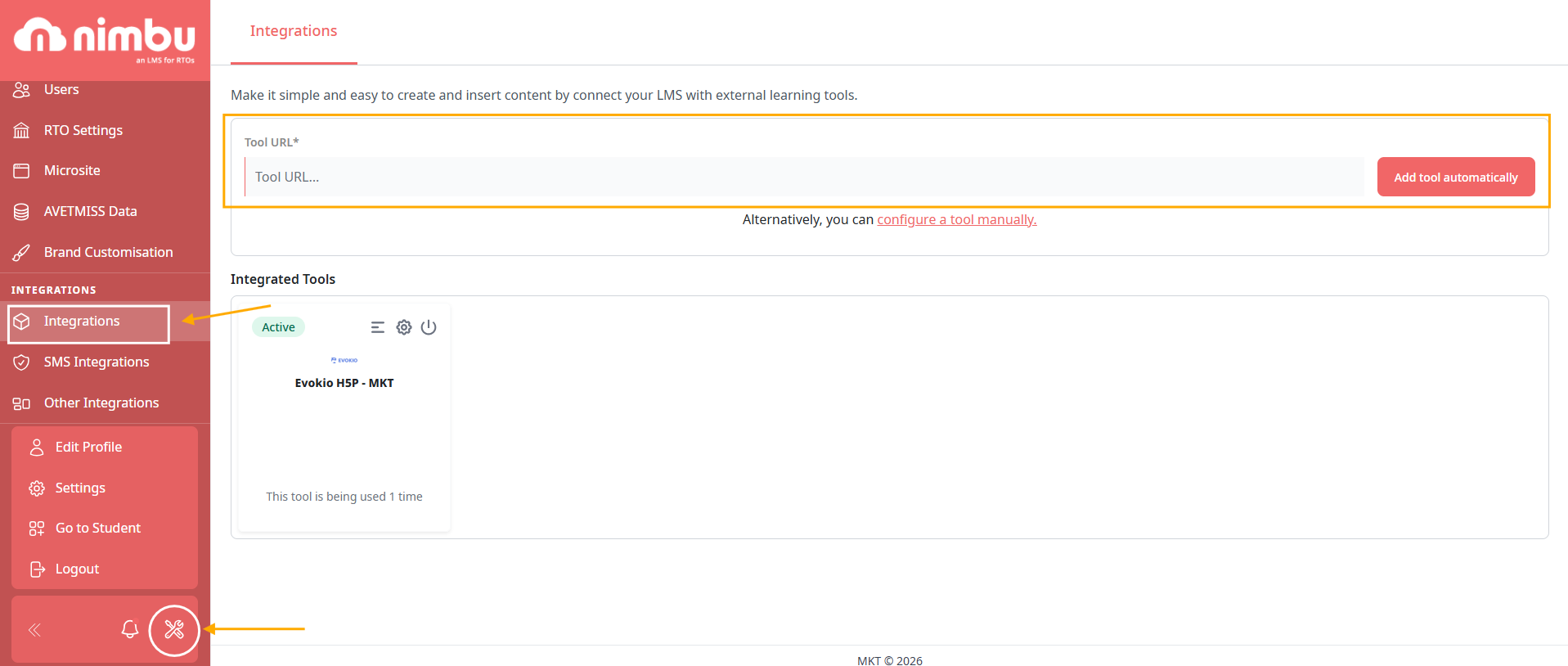
LTI tool connections are managed through the Integrations section of your global Settings.
To navigate there:
- Click the Settings gear icon at the bottom of the left-hand navigation sidebar.
- Select Integrations from the secondary menu.
Option A: Add a Tool Automatically
This is the fastest setup method and is recommended where supported (e.g., Evokio, H5P...).
- Enter the Tool URL provided by your tool provider in the designated field.
- Click "Add Tool Automatically".
- Nimbu will retrieve the tool's configuration details automatically, no manual data entry required.
- Click Activate to enable the connection.
Option B: Configure a Tool Manually
For tools that do not support automatic registration, use manual configuration for full control over the setup.
- Select "Configure a tool manually".
- Complete the required fields:
- Tool Name: The display name for the integration as it will appear in Nimbu.
- Tool URL: The launch endpoint for the external content.
- LTI Version: Displays as LTI 1.3 - this is a fixed value and cannot be changed.
- Public Key Type: Select how the tool's public key is provided:
- RSA Key: paste the public key directly into the field.
- Keyset URL: provide a URL that Nimbu can use to retrieve the key automatically.
- Initiate Login URL: The endpoint used to begin the secure authentication handshake.
- Redirection URI(s): The authorised callback URLs provided by the tool.

- Configuration Usage: Use the dropdown to set whether this tool should appear as a preconfigured option when adding external content to units.
- Privacy Controls: Under the Privacy section, define how much student information is shared with the tool, for example, whether to share the student's username and email address.
- Click Save to finalise the connection and make the tool available for use in your courses.


Supported LTI Features
Once an LTI connection is active, Nimbu supports several advanced interactions that go beyond just viewing a page:
- Deep Linking: Instead of just linking to a homepage, you can link directly to a specific quiz or interactive chapter within the external tool.
- Single Sign-On (SSO): Students are automatically authenticated; their Nimbu profile information is passed to the tool so they don't need a separate account.
- Grade Return: When a student completes an activity in a compatible LTI tool (such as an Evokio Assessment), the result is automatically sent back to the Nimbu gradebook. This works with tools that support LTI Advantage grade passback, no additional configuration is required in Nimbu.
- Embedded Content Display: External tool content is displayed in an embedded iframe directly within the Nimbu unit interface, keeping the student within the platform throughout their learning session.