
Adding Canva Content
Visually appealing presentations have the power to captivate an audience and make the learning experience significantly more engaging. Nimbu's Canva Integration allows you to embed your professional designs directly into the system to be used as core learning material. Because this feature uses live embedding, any edits you make within the Canva platform will automatically reflect inside Nimbu. This ensures your students always have access to the latest version of your visual aids without requiring you to re-upload files.
What's Covered in This Article
This guide provides a step-by-step walkthrough for embedding and configuring Canva content within your resource library.
Configuration Guide: Step-by-Step
Step 1: Access Learning Resources
To begin the integration, navigate to your content registry:
- Sign in to your Nimbu account.
- On the left-hand navigation sidebar, locate the CONTENT section.
- Click on Learning Resources/ Materials.

Step 2: Start the Canva Setup
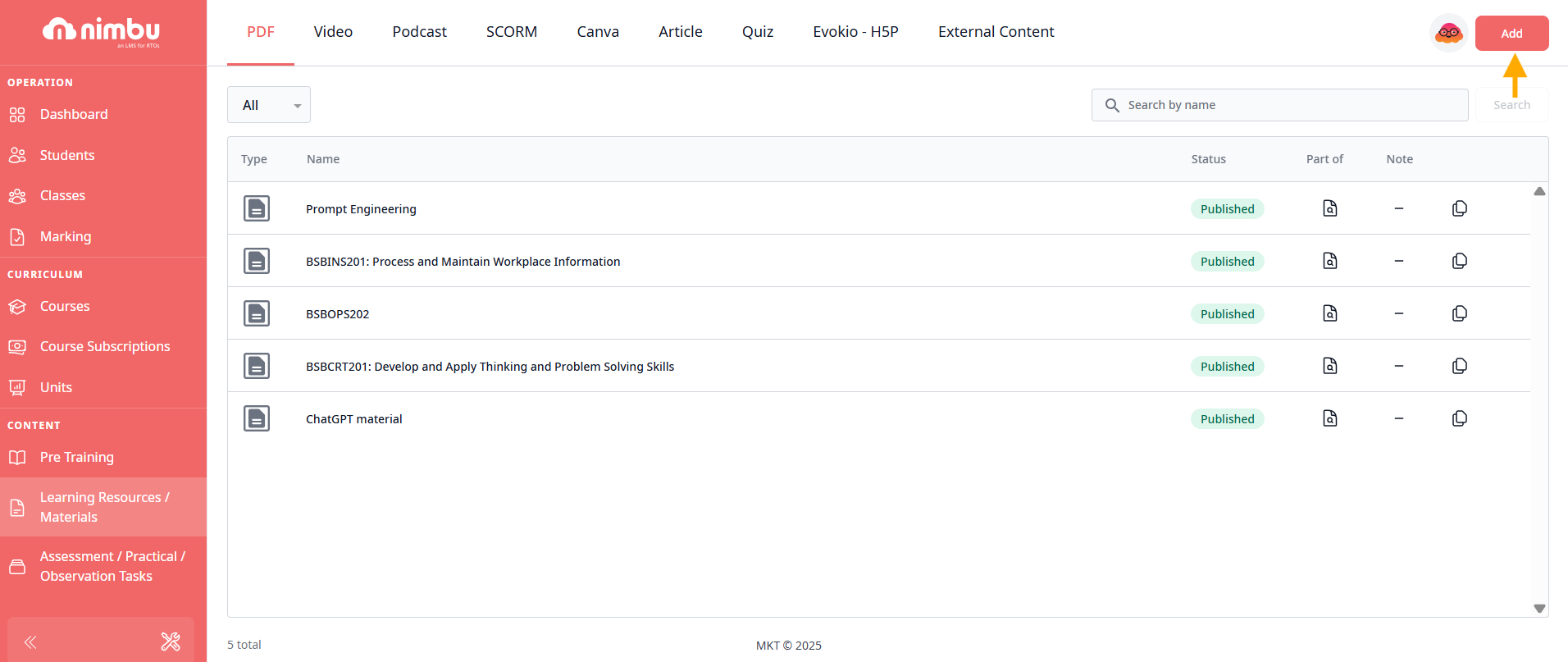
- Click the Add button in the top-right corner of the page.
- From the pop-up menu, select the Canva button.

Step 3: Enter Identification
- In the Title field, enter a descriptive name for your presentation (e.g., Sample Canva).
- This title will identify the resource in your Canva index.

Step 4: Obtain Canva Embed Link
Nimbu links directly to your Canva project to display a live, viewable version.
How to get your Canva embed link:
- Log in to your Canva account.
- Open the design you wish to share
- Click the Share button in the top-right corner
- Select More or look for embedding options
- Choose Website embed or Embed option
- Copy the embed link or viewable link provided

Step 5: Paste Canva Embed Link
- Return to the Nimbu interface.
- Paste the link into the box labelled Canva Viewable Link*.
- The system will validate the link format
Note: Ensure you are using the public view link to allow the platform to render the design correctly for your users.

Step 6: Configure Canva Settings
Once the embed link is pasted, configure the visibility and completion settings:
- Visibility: Select who can access this Canva design:
- Trainer & Student: Both trainers and students can view this design (default and most common setting)
- Trainer Only: Only trainers can access this design (useful for presentation notes, marking guides, or instructor reference materials)
- Preview: Click the Preview tab to confirm the design appears correctly within the Nimbu interface.


Step 7: Finalise and Publish
Once you have verified all settings:
Save as Draft
If the resource requires further review or you want to continue editing later:
- Click Save as Draft in the top-right corner
- The design will be saved but not accessible in units until published
Publish
To make the presentation live and available for use in your classes:
- Click the Publish button in the top-right corner
- Select Yes to confirm
- The resource will now be listed in your Canva index, ready to be mapped to units or used as a reference in assessments

Related Articles
- What are Learning Resources?
- Managing Content