
Adding a Podcast
Podcasts provide a captivating way for learners to gain new knowledge and skills through audio-based content. By embedding playable podcasts into your Content Library, you create versatile assets that can be mapped to any unit or used as references within assessments. Integrating audio resources allows your Registered Training Organisation (RTO) to offer a more inclusive and varied learning experience, catering to students who prefer auditory learning or need to study whilst on the go.
What's Covered in This Article
This guide provides a step-by-step walkthrough for embedding and configuring audio-based podcasts within Nimbu.
Configuration Guide: Step-by-Step
Step 1: Access Learning Resources
Navigate to the resource management area to begin the setup:
- Sign in to your Nimbu account.
- On the left-hand navigation sidebar, locate the CONTENT section.
- Click on Learning Resources/ Materials.

Step 2: Start the Podcast Setup
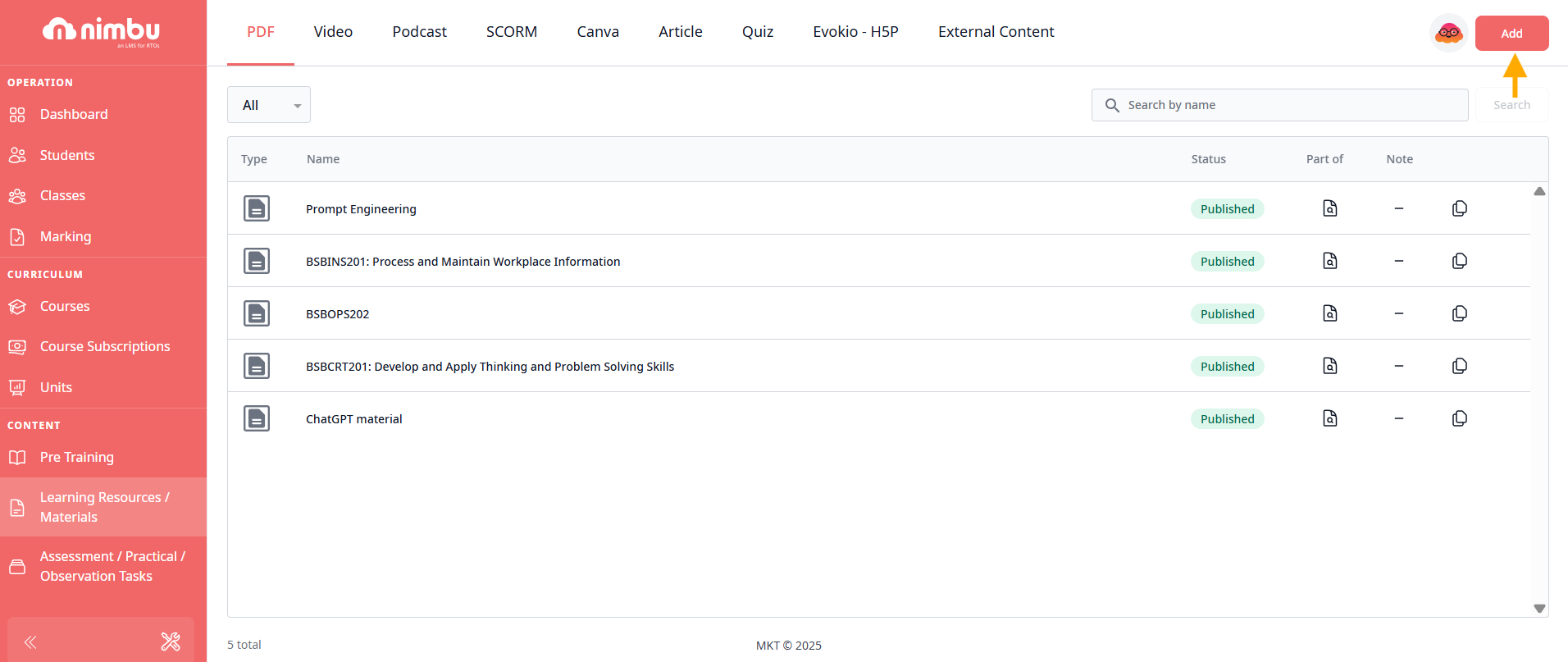
- Click the Add button in the top-right corner of the page.
- From the pop-up menu, select the Podcast option.

Step 3: Enter Identification
- In the Title field, enter a descriptive name for your audio content (e.g., Sample ABC).
- This title will identify the resource in your podcast library and when added to units.

Step 4: Obtain Podcast Embed Code
Nimbu uses specific code snippets to render audio players directly in the platform. The platform supports any audio streaming service that provides iframe embed codes.
Supported platforms include:
- Spotify
- Apple Podcasts (if embeddable)
- SoundCloud
- TuneIn
- Any other platform that provides iframe embed codes
How to obtain embed codes:
- Navigate to your podcast episode on supported platforms
- Click the three dots (...) menu
- Select Share → Embed episode
- Click Copy to copy the embed code
Important: Ensure you are copying the full <iframe> embed code, not the standard URL link. The embed code typically starts with <iframe src="..." and ensures the audio player renders correctly within the system.

Step 5: Paste Podcast Embed Code
- Return to the Nimbu interface
- Paste the copied embed code into the field labelled Podcast Embed Code*
- The system will validate the code format
Important: Do not copy the standard URL; only the iframe code will work.

Step 6: Configure Podcast Settings
Once the embed code is pasted, configure the visibility and completion settings for the podcast:
Visibility
Select who can access this podcast:
- Trainer & Student: Both trainers and students can view this podcast (default and most common setting)
- Trainer Only: Only trainers can access this podcast (useful for professional development content or instructor-only resources)
Preview
To review the audio player before publishing:
- Click the Preview tab next to "Learning resource & material/ Podcast"
- Confirm the audio player displays correctly
- Test playback to ensure the audio streams properly
- Check that the player controls function as expected


Step 7: Finalise and Publish
- Save as Draft: Click Save as Draft in the top-right corner to save your progress without making it live. The podcast will be saved but not accessible in units until published.
- Publish: To activate the podcast for your units, click Publish and select Yes to confirm.
- Once published, the resource will appear in your Podcast index.

Related Articles
- What are Learning Resources?
- Managing Content