
Adding a Video
Videos provide a multi-sensory learning experience that can demonstrate practical applications of theoretical concepts in a way that written material alone cannot. By embedding videos from platforms like YouTube, Vimeo, or other video hosting services into your Content Library, you create a master asset that can be mapped to any unit or used as a reference within assessments. This centralisation allows your Registered Training Organisation (RTO) to maintain high-quality, engaging content that is easily accessible to students and trainers across all cohorts.
What's Covered in This Article
This guide provides a step-by-step walkthrough for embedding and configuring instructional videos within Nimbu.
- Step 1: Access Learning Resources
- Step 2: Start the Video Setup
- Step 3: Enter Identification
- Step 4: Obtain Video Embed Code
- Step 5: Paste Video Embed Code
- Step 6: Configure Video Settings
- Step 7: Finalise and Publish
Configuration Guide: Step-by-Step
Step 1: Access Learning Resources
To begin, you need to navigate to the resource management area:
- Sign in to your Nimbu account.
- On the left-hand navigation sidebar, locate the CONTENT section.
- Click on Learning Resources/ Materials.

Step 2: Start the Video Setup
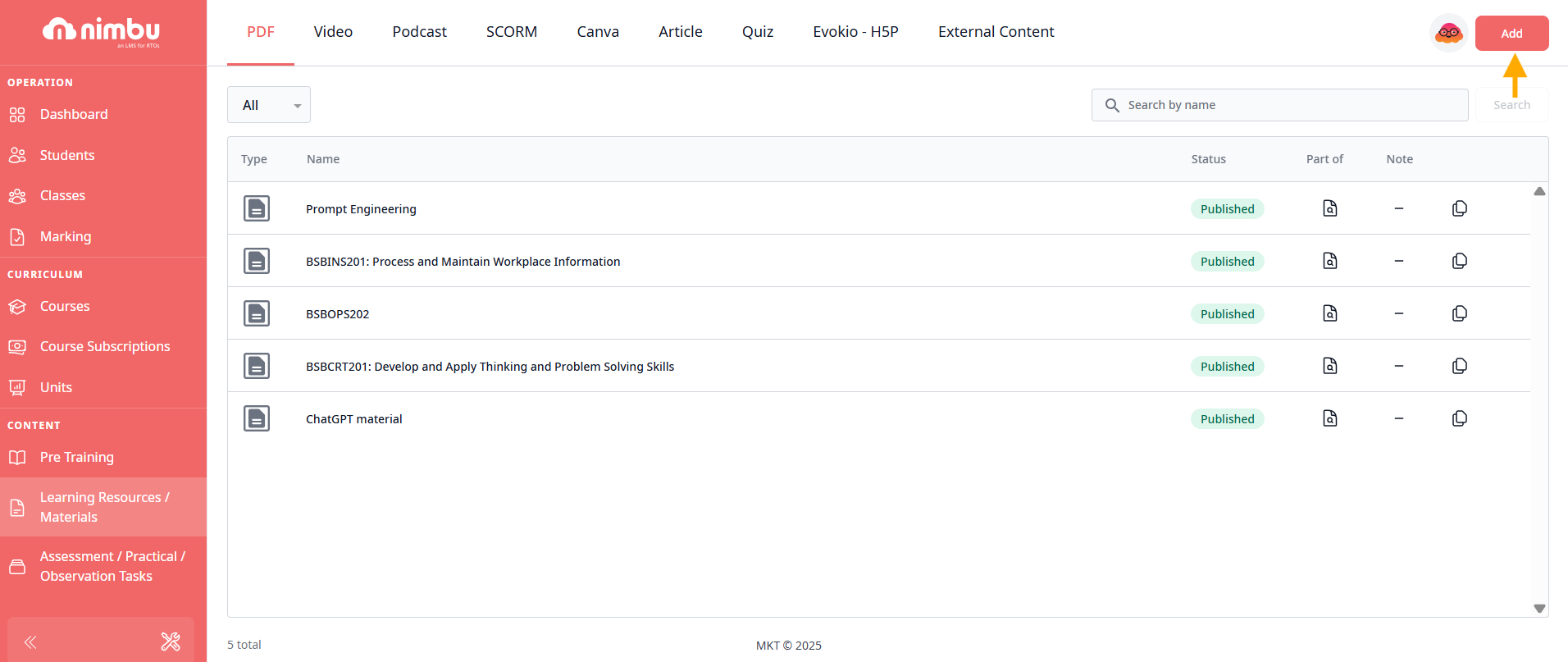
- Click the Add button in the top-right corner of the page.
- From the pop-up menu, select the Video option.

Step 3: Enter Identification
- In the Title field, enter a descriptive name for your video (e.g., "Introduction to Risk Assessment" or "Workplace Safety Procedures")
- This title will identify the resource in your video library and when added to units

Step 4: Obtain Video Embed Code
Nimbu uses embed codes to display external video content directly within the platform. The platform supports any video hosting service that provides iframe embed codes.
- Navigate to your chosen video on YouTube or Vimeo or other platforms (Wistia, Loom, etc.)
- Right-click on the video and choose Copy embed code.
- Click Copy to copy the embed code

Important: Ensure you are copying the full <iframe> embed code, not the standard URL link. The embed code typically starts with <iframe src="..." and ensures the video renders correctly within the system.
Step 5: Paste Video Embed Code
- Return to the Nimbu interface.
- Paste the copied code into the box labelled Video Embed Code*.
- The system will validate the code format

Step 6: Configure Video Settings
Once the code is pasted, you must define the visibility and accessibility of the video:
- Visibility: Select who can access this video:
- Trainer & Student: Both trainers and students can view this video (default and most common setting)
- Trainer Only: Only trainers can access this video (useful for marking guides or instructor-only content)
- Preview:
- Click the Preview tab next to "Learning resource & material / Video"
- Confirm the video plays correctly within the Nimbu player
- Check that the video displays at an appropriate size and quality


Step 7: Finalise and Publish
Once you have verified all settings:
- Save as Draft: If the resource requires further review, click Save as Draft in the top-right corner. The video will be saved but not accessible in units until published
- Publish: To make the video live for your classes, click Publish and select Yes to confirm. The video is now active and can be added to units


Related Articles
- What are Learning Resources?
- Managing Content