
Managing Content
Managing content in Nimbu ensures your learning resources and assessments remain accurate, compliant, and up-to-date. Because Nimbu uses a modular architecture, content items are linked to units rather than embedded within them. This allows centralised updates while requiring careful consideration of impacts on active student learning.
What's Covered in This Article
This guide covers essential workflows for maintaining your content library:
- Refining Assets: Updating existing materials and assessments
- Blueprint Replication: Creating content variations through duplication
- Lifecycle Control: Managing content status (Active/Inactive) and deletion
- Impact Analysis: Understanding how changes affect units using your content
Core Management Actions
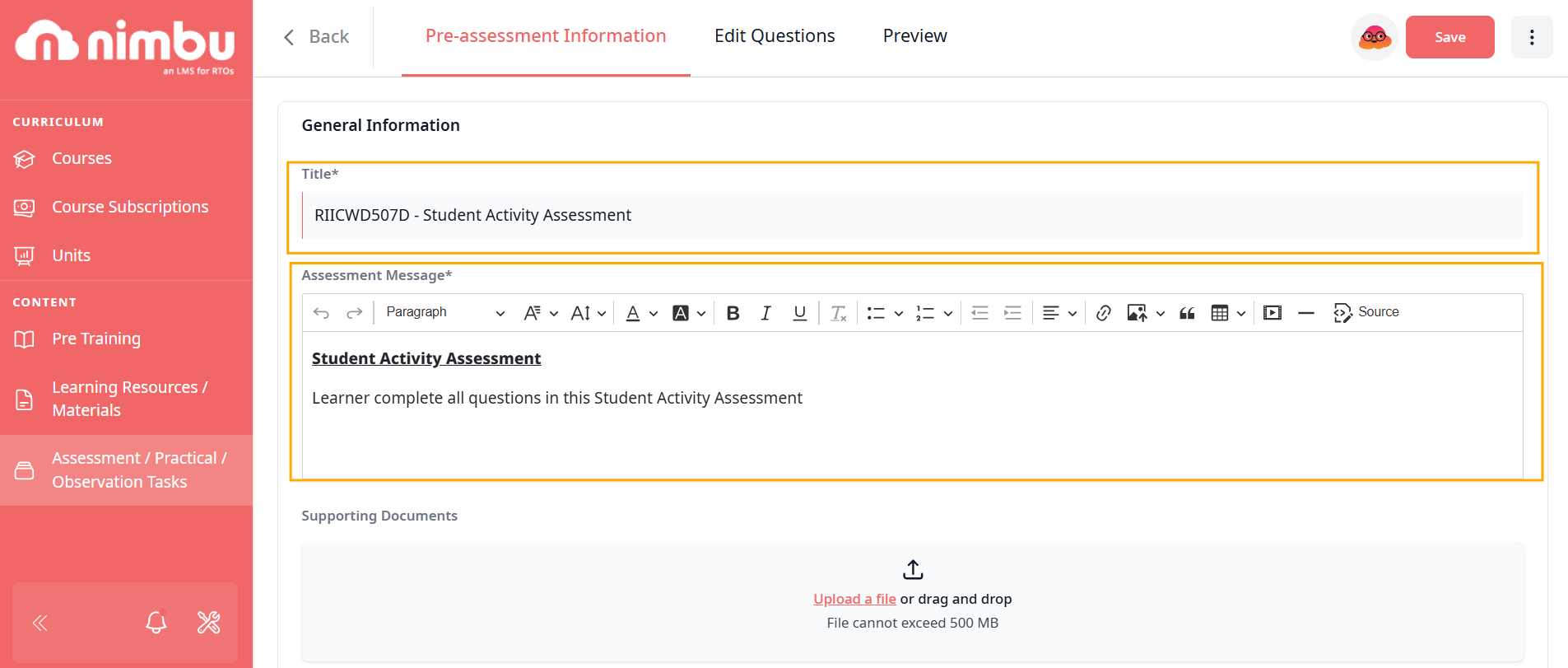
Editing Existing Content
You can modify content items to reflect curriculum updates, fix errors, or refresh materials.
To edit content:
- Navigate to the Content Library and locate the item
- Click the content name to open the editor
- Update fields such as title, description, or internal notes
- Replace files if needed (e.g., upload a new PDF version)
- Click Save to apply changes
Important: Changes to content files propagate automatically to all units (draft and published) that link to that content. This is because units reference content rather than storing copies of it.
When to create a new unit version: You only need to create a new draft version of a published unit when you want to change which content is linked (e.g., swapping one PDF for a completely different one), not when editing the content itself.
Duplicating Content
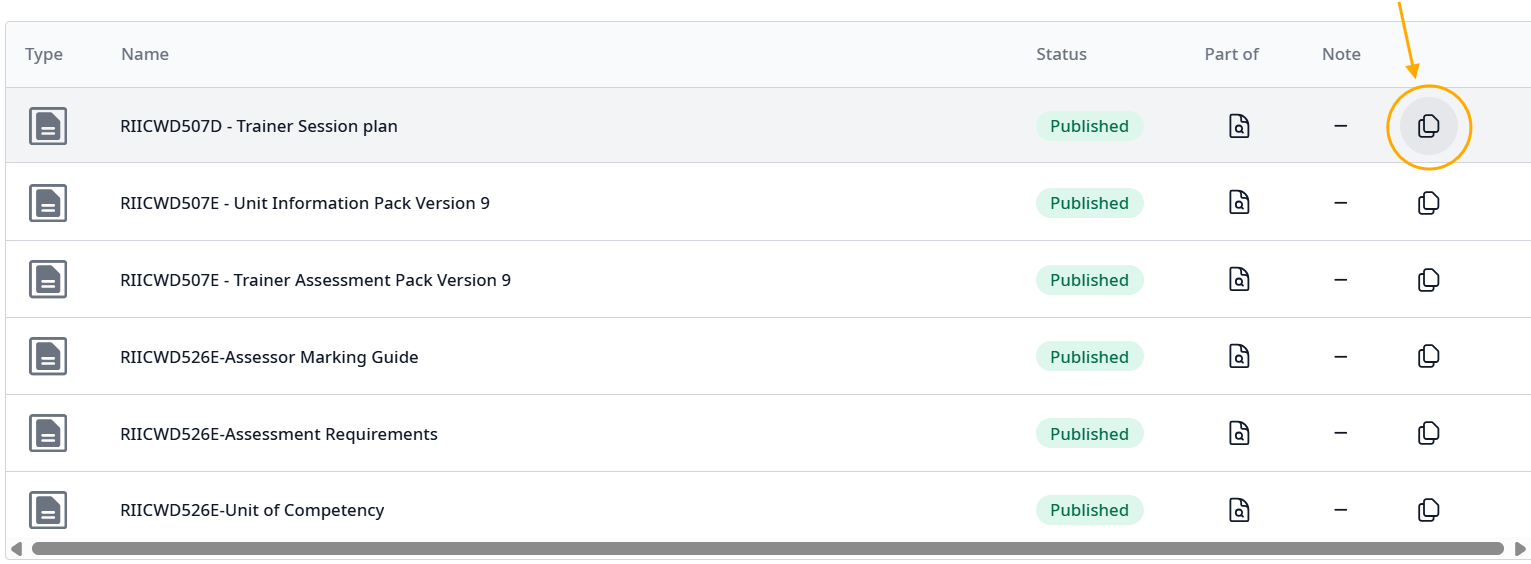
Duplication creates copies of content items, useful for creating variations or localised versions.
To duplicate content:
- Click the Duplicate icon (overlapping squares) on the content item row
- Nimbu creates an identical copy with "(copy)" appended to the title
- Edit the duplicate as needed
Content Status and Deletion
Understanding Content Status
Content items in Nimbu can have one of three statuses:
- Draft: Content still being developed; can be edited freely and deleted
- Published: Content approved for use; editable but cannot be deleted
- Inactive: Content no longer available for new units but preserved in existing ones
Status visibility: The Status column in the Content Library displays the current state of each item with colour-coded badges (yellow for Draft, green for Published, red for Inactive).
Managing Status Changes
- Draft → Published: When you publish content, it becomes available for use in units and courses. Published content can still be edited, but cannot be deleted.
- Published → Inactive: Setting published content to Inactive removes it from content selection when building new units, whilst preserving access for students in classes where it's already linked.
To change status: Navigate to the content item in the Content Library and update its status as needed.
Impact on units:
- Draft content: Changes affect only the draft version
- Published content: Edits propagate immediately to all units using that content
- Inactive content: Remains accessible in existing units but hidden from new content selection
Deleting Content
Permanent deletion removes content from the system entirely.
- Deletion rules:
- Draft content: Can be deleted permanently using the delete icon (bin)
- Published content: Cannot be deleted; must be set to Inactive instead
- Inactive content: Cannot be deleted if previously published
This restriction protects evidence integrity for content that's been used in active learning delivery.

Impact on Units Using the Content
Understanding how content changes flow to units is crucial for maintaining quality whilst avoiding disruption.
-
Draft Units
Changes to linked content update automatically. Draft units remain flexible until published.
-
Published Units
Because units reference content by link rather than storing copies, edits to content items (such as replacing a file or updating text) propagate immediately to all units—both draft and published—that reference that content.
This design enables centralised content maintenance: fix an error once, and it's corrected everywhere that content appears.
When a new unit version is required: You only need to create a new draft version of a published unit when restructuring which content items are included—for example, adding new assessments, removing outdated materials, or reordering sections.