
Content Library Overview
The Content Library serves as the primary storage and management hub for all instructional assets in Nimbu. It acts as a centralised "warehouse" where you can create, store, and organise every piece of material a student might interact with, from simple PDF handbooks to complex interactive assessments and observations.
By housing content centrally, Nimbu allows you to build a resource once and "map" it across multiple Units or Courses, ensuring curriculum consistency and significantly reducing administrative duplication.
What's Covered in This Article
This article provides a functional guide to navigating and managing your digital assets.
- Accessing the Library: Locating the different content sub-menus
- Understanding the Structure: How content is organised by type and purpose
- Search & Filter: Tools to quickly find specific resources in a large repository
- Status Indicators: Understanding the lifecycle of your content
- Content Varieties: An overview of the diverse media and activity types supported
Accessing the Content Library
The Content Library is divided into three main sections, found under the CONTENT category in the left-hand navigation sidebar.
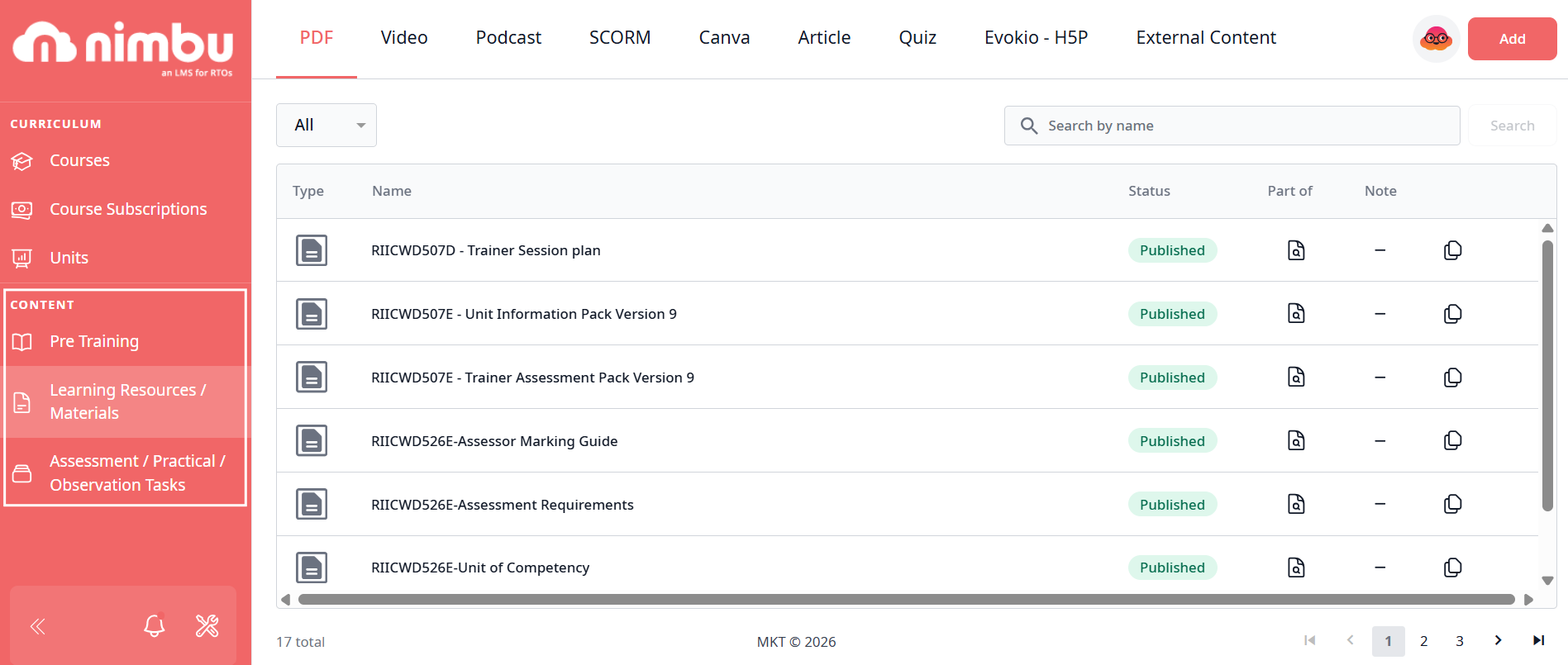
Each section is organised by the content's purpose in the learning journey:
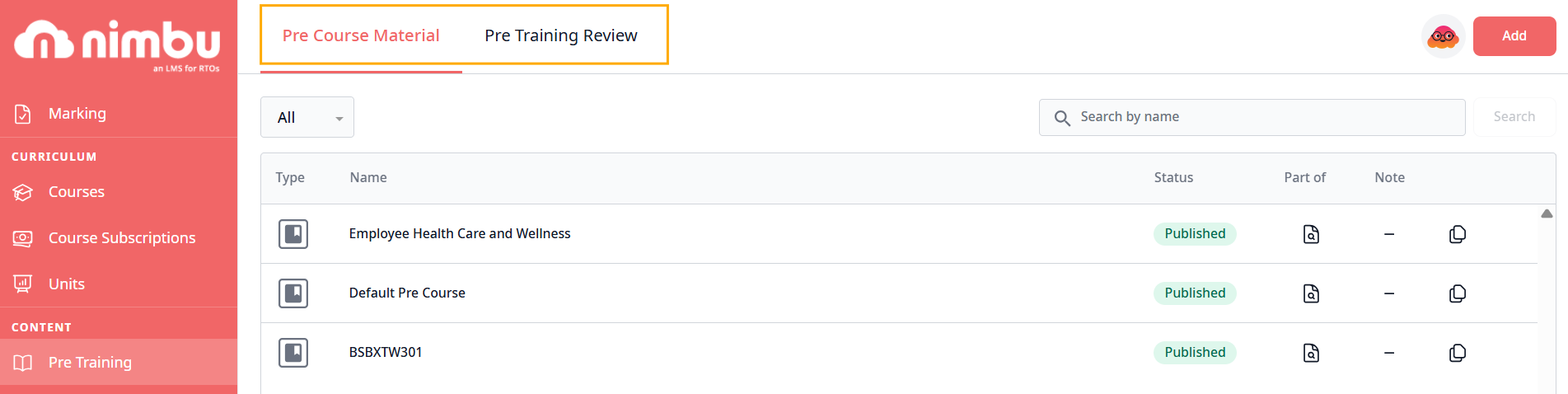
1. Pre Training
Houses materials required before course entry or formal instruction begins.
What's stored here:
- Pre-Training Review (PTR): Knowledge-check assessments to gauge student readiness
- Pre-Course Material (PCM): Required reading, videos, or resources students must review before starting
Purpose: Ensures students are prepared and understand what's expected before beginning their formal training.
2. Learning Resources / Materials
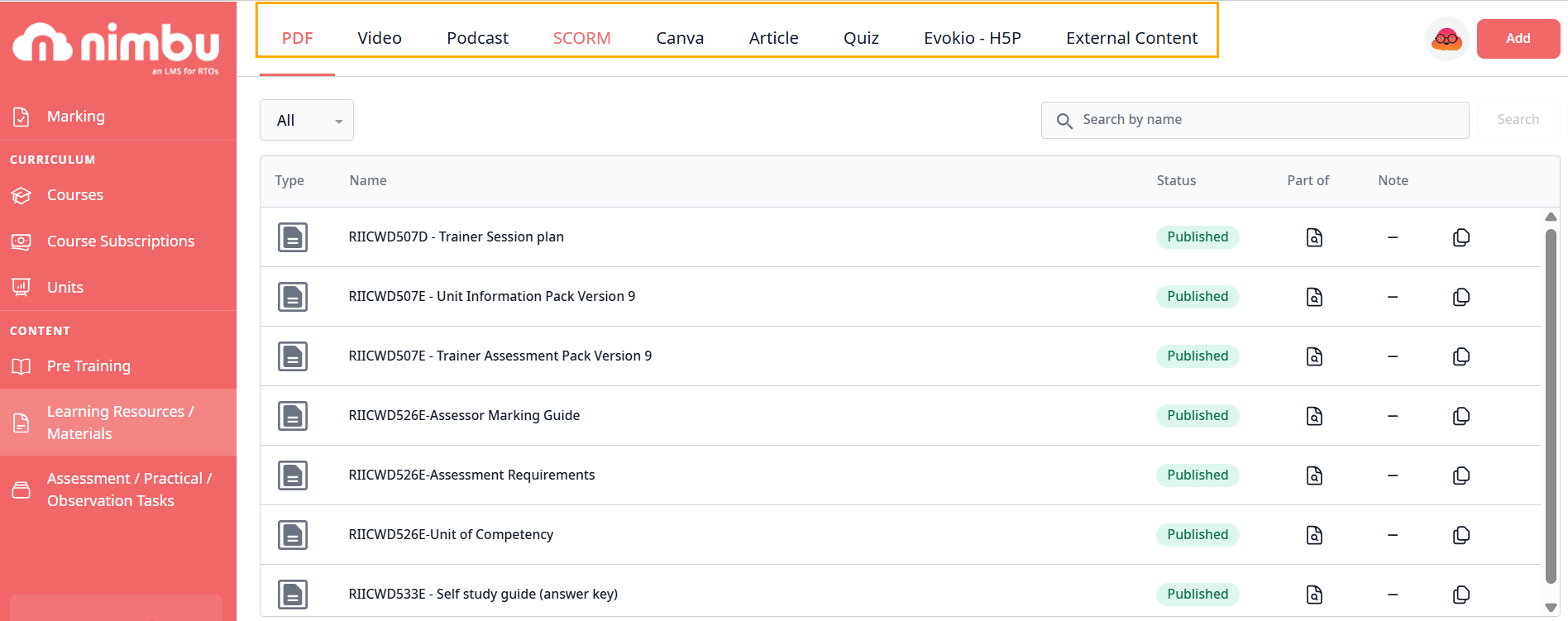
Contains all instructional "input" content—the materials students learn from.
What's stored here:
- Documents: PDFs, downloadable guides, and reference materials
- Media: Videos, podcasts, and audio lectures
- Interactive Content: Articles, SCORM packages, Evokio-H5P widgets, Canva presentations, and quizzes
- External Content/LTI: Interoperability (LTI) contents
Purpose: Provides the knowledge and information students need to understand concepts before demonstrating competency.
3. Assessment / Practical / Observation Tasks
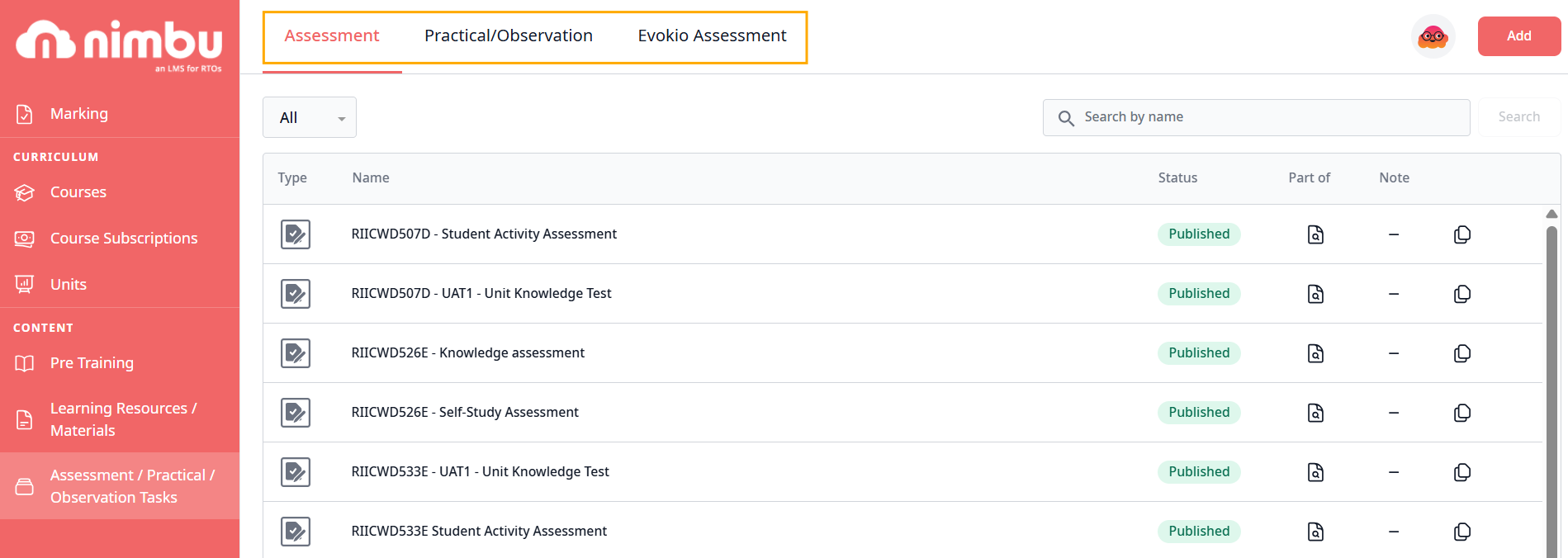
Houses all "output" content where students are graded or observed—where they demonstrate what they've learned.
What's stored here:
- Assessments: Knowledge-based tasks and exams that require trainer marking
- Observations: Practical tasks where trainers record students' live performance of skills
- Trainer Observations (checklist-based)
- Student Observations (student-submitted work with trainer review)
- Evokio Assessments: Advanced assessment tools created using the Evokio platform for specialised evaluation needs
Purpose: Measures student competency and provides evidence of learning outcomes for compliance and reporting.
Understanding the Content Library Structure
The Content Library uses a logical hierarchy to help you find and manage content efficiently:
- By Function:
- Pre Training → Materials for pre-course preparation
- Resources → Learning materials (input)
- Activities → Assessments, observations, and Evokio assessments (output)
- By Format: Within each section, content is further organised by media type (PDF, Video, Quiz, etc.) or assessment type (Assessment, Practical/Observation, Evokio Assessment), making it easy to locate specific items.
- By Status: All content items display their current lifecycle status (Draft, Published, Inactive), helping you understand what's ready for use and what's still in development.
Filtering and Searching Content
As your library grows, Nimbu provides robust tools to help you locate specific items instantly:
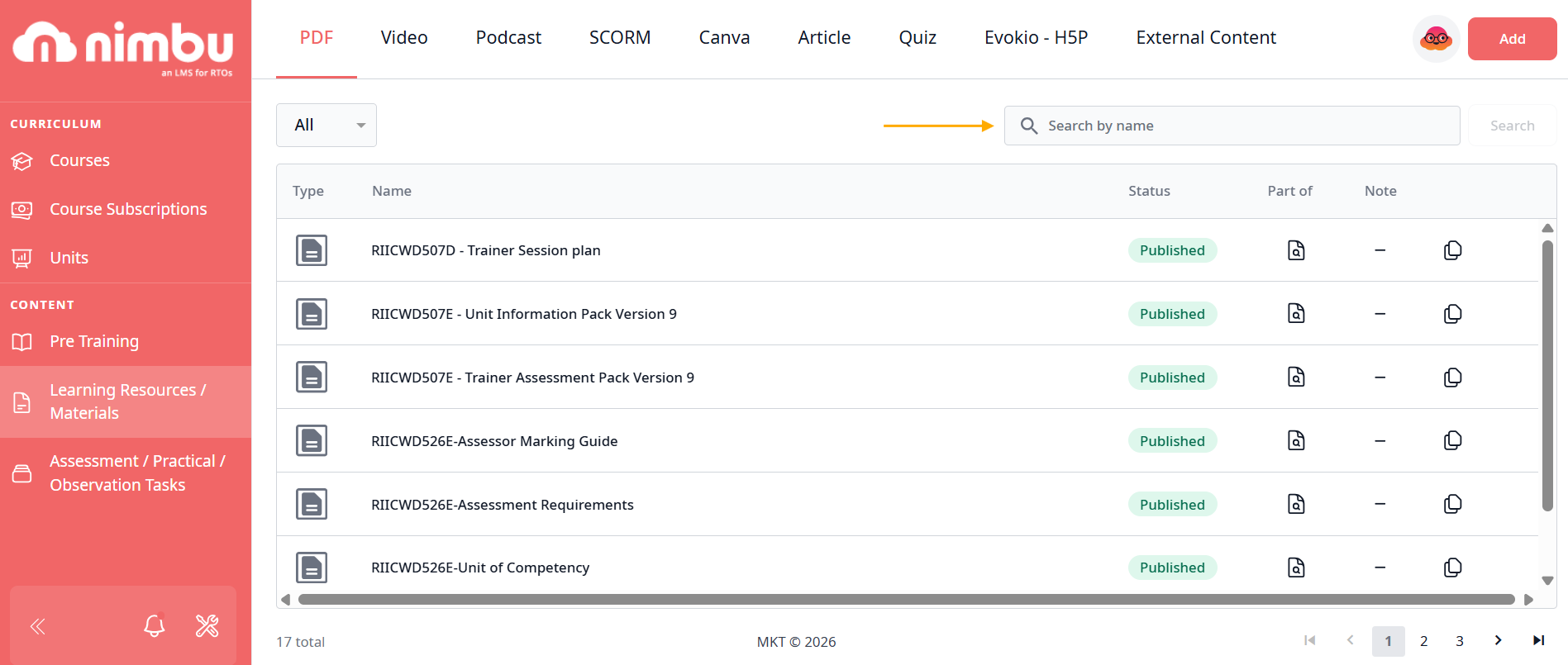
Search Bar
Located at the top-right of the registry, the search bar allows you to:
- Type a specific name, code, or keyword to narrow down results
- Find content quickly without scrolling through long lists
- Search across all content in the current section
Pro Tip: Use specific identifiers like unit codes or content titles for fastest results.
Format Filter Tabs
At the top of the Learning Resources page, you can filter the view by specific media types:
- All: Show all resource types
- PDF: Document-based resources
- Video: Multimedia learning content
- Podcast: Audio learning content
- Article: Text-based materials created in Nimbu
- SCORM: Standards-compliant e-learning packages
- Canva: Interactive design-based presentations
- Quiz: Self-contained, auto-marked knowledge checks
- Evokio-H5P: Interactive widgets and activities
- External Content: Third-party links and LTI integrations
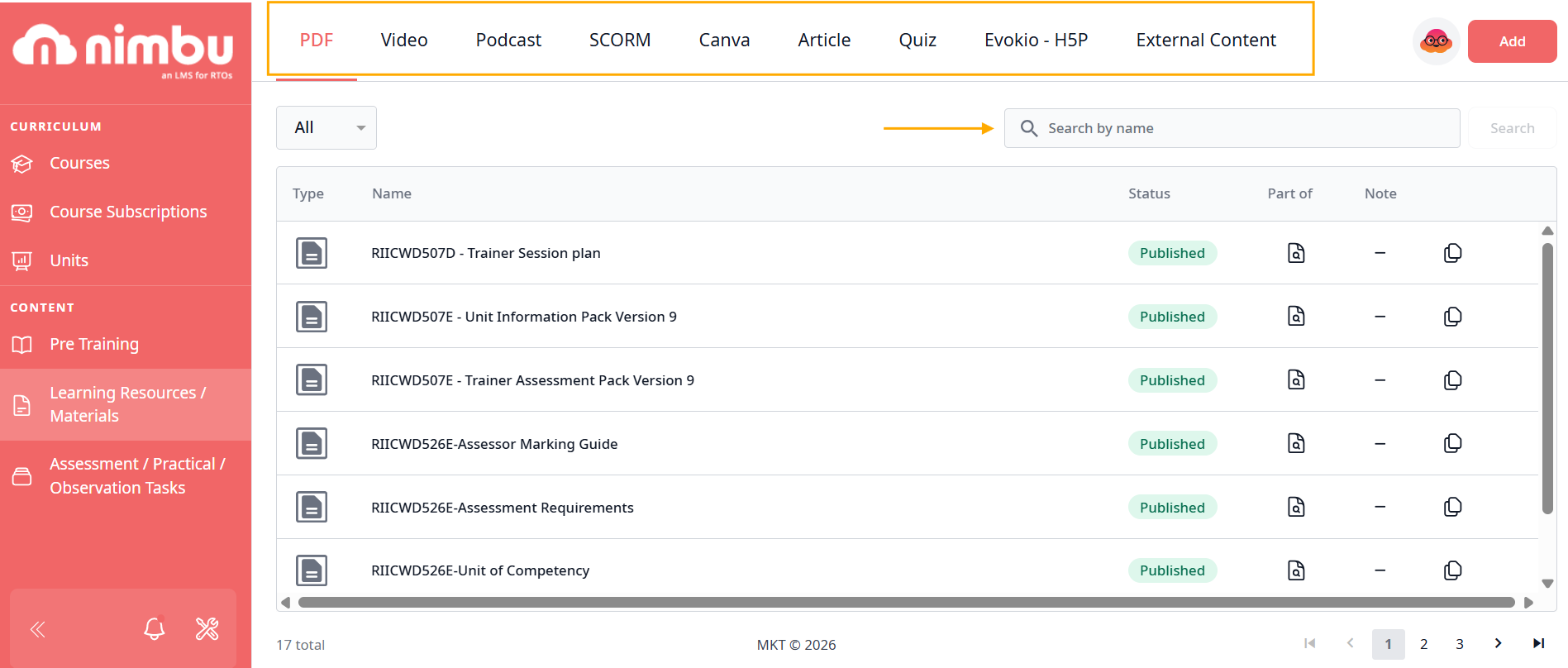
Click any tab to view only content of that specific format.
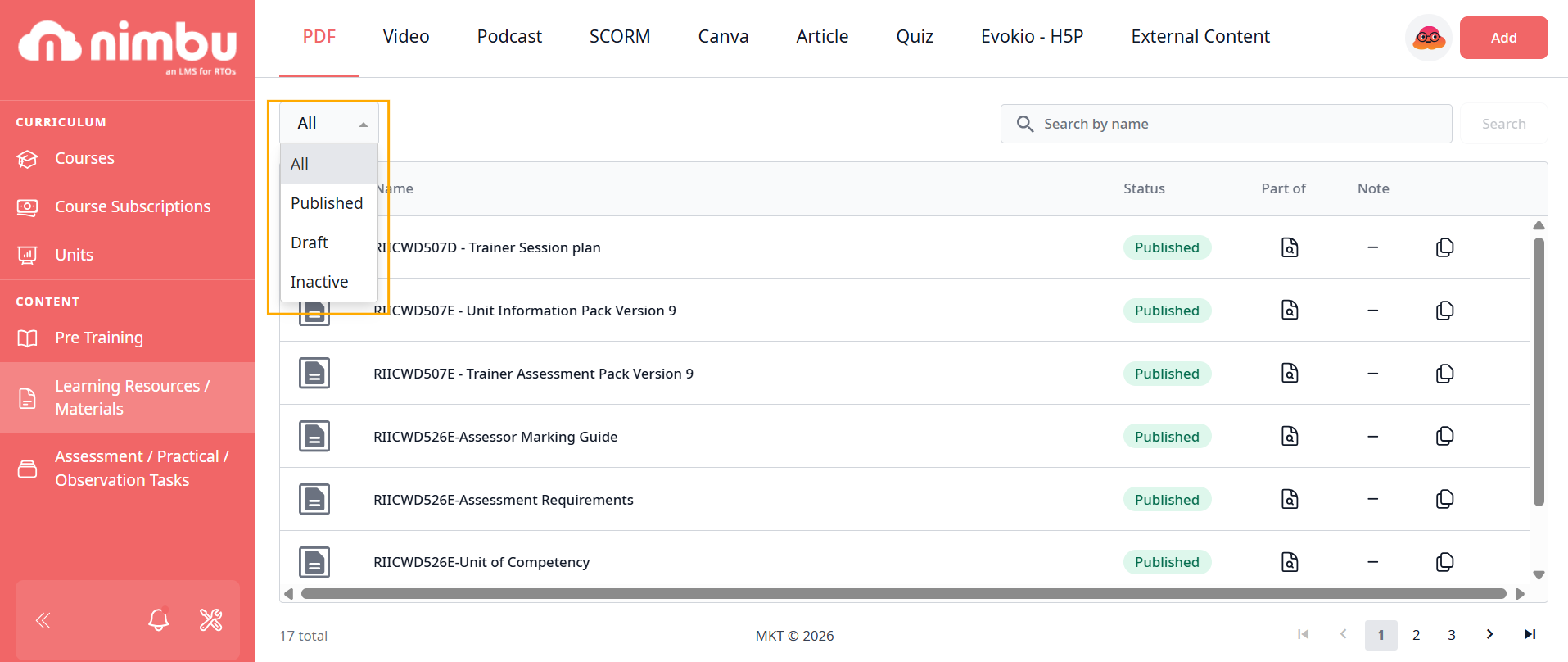
- Global Filter: Use the "All" dropdown to filter items based on their status or other organisational metadata.
Assessment Type Filter Tabs
At the top of the Assessment / Practical / Observation Tasks page, you can filter by assessment type:
- Assessment: Standard knowledge-based assessments and exams
- Practical/Observation: Hands-on skill demonstrations and observations
- Evokio Assessment: Evokio-powered assessment tools
This helps you quickly locate the specific type of graded activity you're looking for.
Status Filter
Use the status dropdown (typically showing "All" by default) to filter items based on their lifecycle state:
- All: Show content in any status
- Draft: Show only items currently being edited
- Published: Show only live, finalised content
- Inactive: Show only archived or deactivated content
This helps you quickly identify what's ready to use, what's still in development, or what's been retired.
Content Status Indicators
Every item in the library is assigned a status that dictates how it can be used:
- Draft: The item is currently being edited by an Editor and is not yet visible to students.
- What you can do:
- Freely edit all aspects of the content
- Add or remove elements
- Change settings and configurations
- Preview how it will appear to students
- What you can do:
- Published: The item is finalised and live. It can now be mapped to Units and accessed by students in active classes.
- What you can do:
- Map the content to units and courses
- Include it in new or existing classes
- View and reference it
- Create a new draft version if changes are needed
- What you can do:
- Inactive: The content is archived or deactivated—no longer actively used but preserved for historical records and compliance.
- What you can do:
- View the content for reference
- Reactivate it by changing status back to Published if needed
- Maintain it for audit and compliance purposes
- What you can do:
Content Types Available
Nimbu supports a wide range of formats to facilitate diverse learning styles and assessment methods. Here's a comprehensive overview:
Documents & Media
| Type | Description | Use Cases |
|---|---|---|
| Downloadable document files | Student handbooks, reference guides, worksheets, marking rubrics | |
| Video | Multimedia visual content | Tutorial demonstrations, recorded lectures, skill showcases |
| Podcast | Audio-only content | Audio lectures, interviews, discussions for mobile learning |
| Canva | Interactive presentations | Visually engaging slides, infographics, design-based content |
Interactive Resources
| Type | Description | Use Cases |
|---|---|---|
| Article | Text-based content created in Nimbu | In-platform reading materials, formatted text lessons, theory content |
| Quiz | Self-contained, auto-marked learning tool | Knowledge checks, practice tests, self-assessment for reinforcement |
| SCORM | Standards-compliant e-learning packages | Complete e-learning modules, interactive courses, third-party content |
| Evokio-H5P | Interactive widgets and activities | Drag-and-drop exercises, interactive videos, gamified learning elements |
| External Content/LTI | Links or embeds to third-party resources | YouTube videos, external websites, LTI-integrated tools |